You can use the Configure Transformation Scenarios(s) dialog box to manage both the built-in transformation scenarios and the ones you create.
To open this dialog box, use the  Configure Transformation Scenario(s) (Alt + Shift +
T, C (Meta + Alt + T, C on OS X)) action from the
Transformation toolbar or the XML menu.
Configure Transformation Scenario(s) (Alt + Shift +
T, C (Meta + Alt + T, C on OS X)) action from the
Transformation toolbar or the XML menu.
Figure: Configure Transformation Scenario(s) Dialog Box
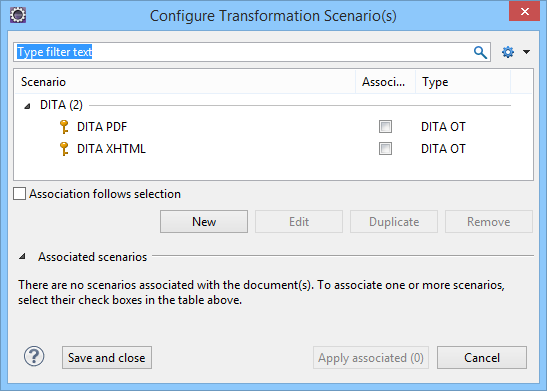
The top section of the dialog box contains a filter that allows you to search through the
scenarios list. The  Settings button allows you to configure the following options:
Settings button allows you to configure the following options:- Show all scenarios - Select this option to display all the available scenarios, regardless of the document they are associated with.
- Show only the scenarios available for the editor - Select this option to only display the scenarios that Oxygen XML Developer plugin can apply for the current document type.
- Show associated scenarios - Select this option to only display the scenarios associated with the document you are editing.
-
 Import scenarios - This option opens the
Import scenarios dialog box that allows you to select the
scenarios file that contains the scenarios you want to import. If one
of the scenarios you import is identical to an existing scenario, Oxygen XML Developer plugin
ignores it. If a conflict appears (an imported scenario has the same name as an existing one),
you can choose between two options:
Import scenarios - This option opens the
Import scenarios dialog box that allows you to select the
scenarios file that contains the scenarios you want to import. If one
of the scenarios you import is identical to an existing scenario, Oxygen XML Developer plugin
ignores it. If a conflict appears (an imported scenario has the same name as an existing one),
you can choose between two options: - Keep or replace the existing scenario.
- Keep both scenarios. Note: When you keep both scenarios, Oxygen XML Developer plugin adds imported to the name of the imported scenario.
- Export selected scenarios - Use this option to export
transformation and validation scenarios individually. Oxygen XML Developer plugin creates a
scenarios file that contains the scenarios that you export.
The middle section of the dialog box displays the scenarios that you can apply to the current
document. You can view both the scenarios associated with the current document type and the
scenarios defined at project level. The following columns are used to display the
transformation scenarios:
- Association - The check-boxes in this column mark whether a transformation scenario is associated with the current document.
- Scenario - This column presents the names of the transformation scenarios.
- Type - Displays the type of the transformation scenario. For further details about the different types of transformation scenarios available in Oxygen XML Developer plugin see the Defining a New Transformation Scenario section.
- Storage - Displays where a transformation scenario is stored (the Show Storage option must be enabled.)
To sort each column you can left-click its header. The contextual menu of each header allows
you to do the following:
- Show Type - Use this option to display the transformation type of each scenario.
- Show Storage - Use this option to display the storage location of the scenarios.
- Group by Type - Select this option to group the scenarios by their type.
- Group by Storage - Select this option to group the scenarios by their storage location.
 Ungroup all - Select this option to ungroup all the scenarios.
- Reset Layout - Select this option to restore the default settings of the layout.
The bottom section of the dialog box contains the following actions:
- Association follows selection - Enable this check-box to
automatically associate selected transformation scenarios with the current document. This
option can also be used for multiple selections.Note: When this option is enabled, the Association column is hidden.
- New - This button allows you to create a new transformation scenario, depending upon its type.
- Edit - This button opens the Edit Scenario
dialog box that allows you to configure the options of the transformations
scenario.Note: If you try to edit a transformation scenario associated with a defined document type, Oxygen XML Developer plugin displays a warning message to inform you that this is not possible and gives you the option to create a duplicate transformation scenario to edit instead.
- Duplicate - Use this button to create a duplicate transformation scenario.
- Remove - Use this button to remove transformation
scenarios.Note: Removing scenarios associated with a defined document type is not allowed.
The Edit, Duplicate,
Remove,  Import scenarios, and Export selected
scenariosactions are also available in the contextual menu of the transformation
scenarios listed in the middle section of the dialog box.
Import scenarios, and Export selected
scenariosactions are also available in the contextual menu of the transformation
scenarios listed in the middle section of the dialog box.
