To import a text file into an XML file, follow these steps:
-
Click the Next button.
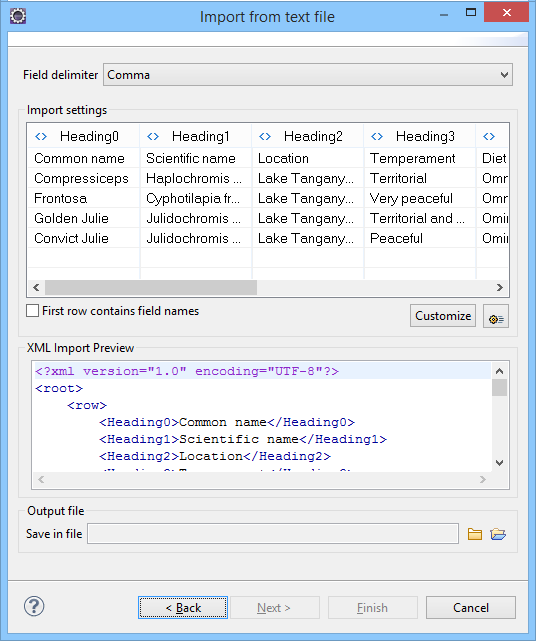
The Import from text file dialog box is displayed.
Figure: Import from Text File Dialog Box
-
Configure the settings for the conversion.
- Select the Field delimiter for the import settings. You can choose between the following: Comma, Semicolon, Tab, Space, or Pipe.
-
The Import settings section presents the input data in a
tabular form. By default, all data items are converted to element content
(
 symbol), but this can be overridden by clicking the individual column
headers. Clicking a column header once causes the data from this column to be
converted to attribute values (
symbol), but this can be overridden by clicking the individual column
headers. Clicking a column header once causes the data from this column to be
converted to attribute values ( symbol). Clicking a second time causes the
column data to be ignored (
symbol). Clicking a second time causes the
column data to be ignored ( symbol) when generating the XML file. You can
cycle through these three options by continuing to click the column header.
symbol) when generating the XML file. You can
cycle through these three options by continuing to click the column header.
- First row contains field names - If this option is enabled, the default column headers are replaced (where such information is available) by the content of the first row. In other words, the first row is interpreted as containing the field names. The changes are also visible in the preview panel.
- Customize - This button opens a Presentation Names dialog box that allows you to edit the name, XML name, and conversion criterion for the root and row elements. The XML names can be edited by double-clicking the desired item and entering the label. The conversion criteria can also be modified by selecting one of the following option in the drop-down menu: ELEMENT, ATTRIBUTE, or SKIPPED.
-
 Import Settings - Clicking this button opens the Import Preferences page that
allows you to configure more import options.
Import Settings - Clicking this button opens the Import Preferences page that
allows you to configure more import options.
- The XML Import Preview panel contains an example of what the generated XML document looks like.
- Save in file - If checked, the new XML document is saved in the specified path.
