To open this dialog box, go to File >  Open URL (or click the Open URL toolbar button), then choose the
Browse for remote
file option from the drop down action list.
Open URL (or click the Open URL toolbar button), then choose the
Browse for remote
file option from the drop down action list.
Figure: Open URL Dialog Box
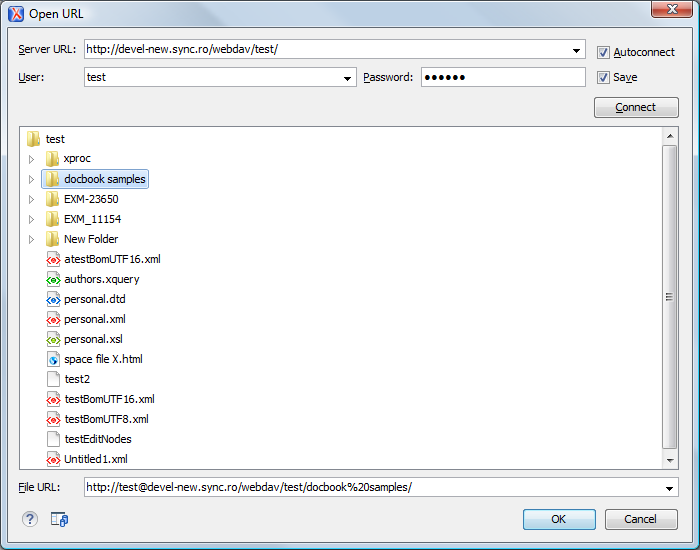
The displayed dialog box is composed of several parts:
-
The Identification section contains the access credentials. To browse for a file on a server, you have to specify the user and password. This information is bound to the selected URL displayed in the File URL combo box, and used further in opening/saving the file. If the check box Save is selected, then the user and password are saved between editing sessions. The password is kept encrypted in the options file.Note:
Your password is well protected. In the case the options file is used on other machine by a user with a different username the password will become unreadable, since the encryption is username dependent. This is also true if you add URLs having user and password to your project.
-
In the server combo you can specify the protocol (HTTP, HTTPS or FTP) and the host name or IP of the server.Tip: When specifying a URL, follow these rules:
- To access an FTP server, write the protocol, host, and port (if using a non-standard one), like ftp://server.com or ftp://server.com:7800/.
- To access a WebDAV server, write the path to the directory of the WebDAV repository along with the protocol and the host name, like https://www.some-webdav-server.com:443/webdav-repository/.
Important:Make sure that the repository directory ends in a slash "/", like https://www.some-webdav-server.com:443/webdav-repository/
By pressing the Connect button the directory listing will be shown in the component below. If the selected URL points to a SharePoint server, a dedicated SharePoint browsing component is presented. When Autoconnect is selected, the browse action is performed every time when you open the dialog box.
-
The browser view:
- If you are browsing a WebDAV or FTP repository, the items are presented in a
tree-like fashion. You can browse the directories, and make multiple selections.
Additionally, you may use the Rename,
Delete, and New Folder actions to
manage the file repository.Note: The file names are sorted in a case-insensitive way.
-
When you browse a SharePoint repository, a specialized component renders the SharePoint site content.
Figure: Browsing a SharePoint Repository
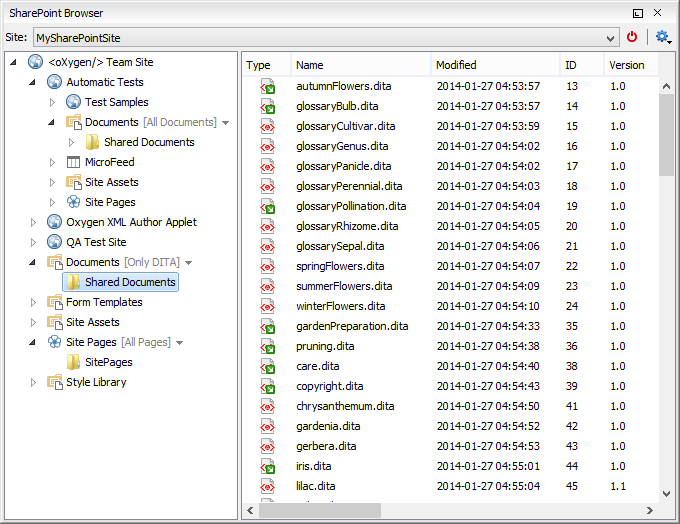
The left side navigation area presents the SharePoint site structure in a tree-like fashion displaying the following node types: sites (
 ), libraries, and
folders. Depending on the type of node, a contextual menu offers customized actions that can be performed on that node. The contextual menu of a folder allows you to create new folders and documents, import folders and files, and to rename and delete the folder.Note: The rename and delete actions are not available for library root folders (folders located at first level in a SharePoint library).Each library node display next to its name a drop down box where you can select the current library view. This functionality is also available on the node's contextual menu, under the Current View submenu.
), libraries, and
folders. Depending on the type of node, a contextual menu offers customized actions that can be performed on that node. The contextual menu of a folder allows you to create new folders and documents, import folders and files, and to rename and delete the folder.Note: The rename and delete actions are not available for library root folders (folders located at first level in a SharePoint library).Each library node display next to its name a drop down box where you can select the current library view. This functionality is also available on the node's contextual menu, under the Current View submenu.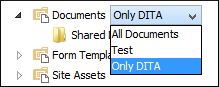
The content of a folder is displayed in a tabular form, where each row represents the properties of a folder or document. The list of columns and the way the documents and folders are organized depends on the currently selected view of the parent library.
You can filter and sort the displayed items. To display the available filters of a column, click the filter widget located on the column's header. You can apply multiple filters at the same time.Note: A column can be filtered or sorted only if it was configured this way on the server side.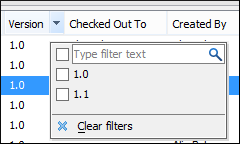
- If you are browsing a WebDAV or FTP repository, the items are presented in a
tree-like fashion. You can browse the directories, and make multiple selections.
Additionally, you may use the Rename,
Delete, and New Folder actions to
manage the file repository.
-
The editable combo box, in which it can be specified directly the URL to be opened or saved.Tip: You can type a URL, such as http://some.site/test.xml (if the file is accessible through normal HTTP protocol), or ftp://anonymous@some.site/home/test.xml (if the file is accessible through anonymous FTP).This combo box is also displaying the current selection when the user changes selection by browsing the tree of folders and files on the server.
