The support to configure a Microsoft SQL Server connection is available in the
Enterprise edition only.
To configure a connection to a Microsoft SQL Server, follow these steps:
-
Open the
Preferences dialog box and go to .
-
In the Connections panel, click the
 New button.
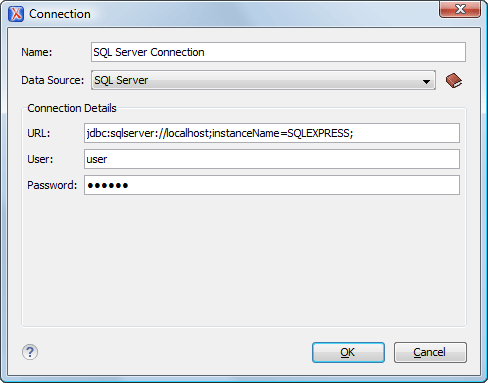
The dialog box for configuring a database connection is displayed.
Figure: The Connection Configuration Dialog Box
-
Enter a unique name for the connection.
-
Select the SQL Server data source in the Data Source
drop-down menu.
-
Enter the connection details.
-
Enter the URL of the SQL Server server.
If you want to connect to the server using Windows integrated authentication, you
must add
;integratedSecurity=true to the end of the URL. The URL will
look like
this:
jdbc:sqlserver://localhost;instanceName=SQLEXPRESS;integratedSecurity=true;
Note: For
integrated authentication, leave the User and
Password fields empty.
-
Enter the user name for the connection to the SQL Server.
-
Enter the password for the connection to the SQL Server.
-
Click the OK button to finish the configuration of the database
connection.
