Oxygen XML Author supports a wide range of document types. The New
Document wizard presents the default associations between a file extension and
the type of editor that opens the file. To customize these default associations, open the
Preferences dialog box and go to .
-
To create a document in Oxygen XML Author, either select or click the
 New button on the toolbar.
Oxygen XML Author displays the New Document wizard and groups the supported document types in multiple categories:
New button on the toolbar.
Oxygen XML Author displays the New Document wizard and groups the supported document types in multiple categories:- Recently used - Contains the list of the most recently used files.
- New Document - Contains the list of all supported document types. This list includes XML, CSS, Text, PHP, JavaScript.
- Global templates - Contains the list of predefined templates
as well as user-defined custom templates. You can add custom template files to the
templates folder of the Oxygen XML Author installation
directory. You can also specify an additional directory to use for templates in the
Document Templates Preferences page.Note: You can also use editor variables in the template file content and they will be expanded when the files are opened.
- Framework templates - Contains the list of templates defined in the Document Type configuration dialog box, Templates tab.
-
If you select Customize, Oxygen XML Author
opens the following dialog box. You can customize different options depending on
the document type you select.
-
Figure: New XML Document Dialog Box
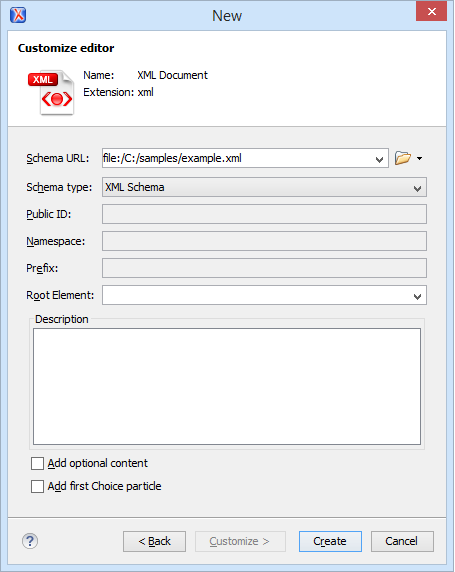
- Schema URL - Specifies the path to the schema file. When you select a file, Oxygen XML Author analyzes its content and tries to fill the rest of the dialog box.
- Schema type - Allows you to select the schema type. The following options are available: XML Schema, DTD, RelaxNG XML syntax, RelaxNG compact syntax, and NVDL.
- Public ID - Specifies the PUBLIC identifier declared in the document prolog.
- Namespace - Specifies the document namespace.
- Prefix - Specifies the prefix for the namespace of the document root.
- Root Element - Populated with elements defined in the specified schema, enables selection of the element used as document root.
- Description - A small description of the selected document root.
- Add optional content - If you select this option, the elements, and attributes defined in the XML Schema as optional, are generated in the skeleton XML document.
- Add first Choice particle - If you select this option, Oxygen XML Author generates the first element of an xs:choice schema element in the skeleton XML document. Oxygen XML Author creates this document in a new editor panel when you click OK.
-
Figure: New XSL Document Dialog Box
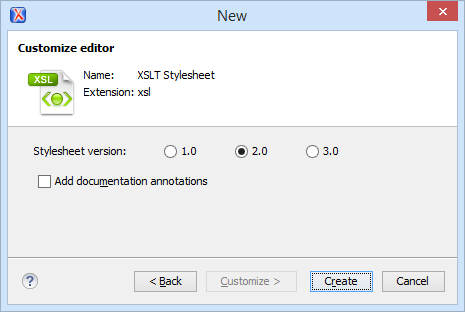
- Stylesheet version - Allows you to select the Stylesheet version number. You can select from: 1.0, 2.0, and 3.0.
- Add documentation annotations - Enable this option to generate the stylesheet documentation.
-
Figure: New XML Schema Document Dialog Box
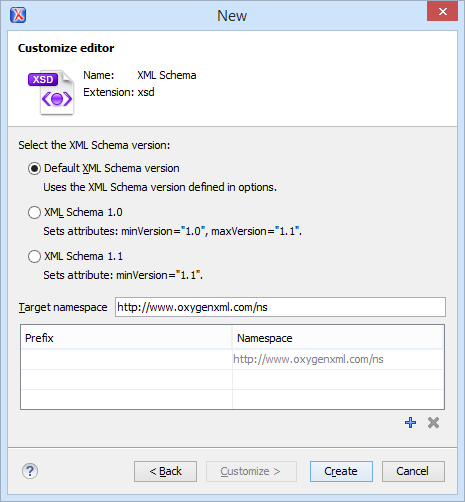
- Default XML Schema version - Uses the XML Schema version defined in the XML Schema preferences page.
- XML Schema 1.0 - Sets the minVersion attribute to 1.0 and the maxVersion attribute to 1.1.
- XML Schema 1.1 - Sets the minVersion attribute to 1.1.
- Target namespace - specifies the schema target namespace.
- Namespace prefix declaration table - contains namespace
prefix declarations. Table information can be managed using the
 New and
 Delete buttons.
-
Figure: New Schematron Document Dialog Box
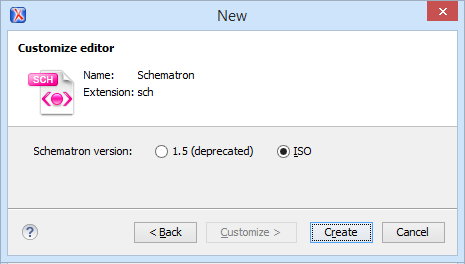
- Schematron version - Specifies the Schematron version.
Possible options: 1.5 and ISO.Note: Starting with version 16.0 of Oxygen XML Author, the support for Schematron 1.5 is deprecated. It is recommended to use ISO Schematron instead.
To easily create a Schematron document the application offers two predefined document templates, ISO Schematron and Schematron 1.5.
- Schematron version - Specifies the Schematron version.
Possible options: 1.5 and ISO.
-
