All the Oxygen XML Author views available in the Editor Perspective are dockable.
You can drag any view to any margin of another view or editor inside the Oxygen XML Author window. Once you create a layout that suites your needs, you are able to save it from . Oxygen XML Author creates a layout file containing the preferences of the
saved layout. To load a layout, go to . To reset it, select .
Note: The Load Layout menu lets you select between the
default layout, a predefined layout, or a custom layout. The changes you make using the
Load Layout menu are also reflected in the Application
Layout preferences page.
The changes you make to any layout are preserved between working sessions. Also, changing to a different layout and returning to the previous one does not alter the changes you made to the first layout. The predefined layout files are saved in the preferences directory of Oxygen XML Author.
To gain more editing space in the Oxygen XML Author window, click  Toggle auto-hide in
any view. This button sets the view in the auto-hide state, making it visible only as a
vertical tab, at the margins of the Oxygen XML Author window. To display a view in the
auto-hide state, hover its side-tab with your cursor, or click it to keep the
view visible until you click elsewhere. A view can also be set to a floating state, making it
independent from the rest of the Oxygen XML Author window.
Toggle auto-hide in
any view. This button sets the view in the auto-hide state, making it visible only as a
vertical tab, at the margins of the Oxygen XML Author window. To display a view in the
auto-hide state, hover its side-tab with your cursor, or click it to keep the
view visible until you click elsewhere. A view can also be set to a floating state, making it
independent from the rest of the Oxygen XML Author window.
You can drag the editors and arrange them in any order you like, both horizontally and vertically.
The next figure presents two editors arranged as horizontal tiles. To arrange them
vertically, drag one of them on top of the other. In the example below, the
personal.xml file was dragged over the
personal-schema.xml file. When doing this, a dark grey rectangle marks
the rearranged layout.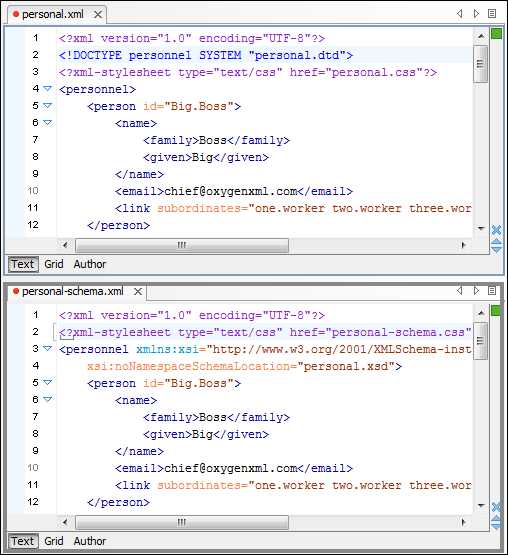
Figure: Drag and Drop Editors
You can also tile or stack all open editors, both in the Editor Perspective or in the Database
Perspective, using the following actions from the Editor
toolbar or Window menu:
 Tile
Editors Horizontally
Tile
Editors Horizontally- Splits the editing area into horizontal tiles, one for each open file.
 Tile
Editors Vertically
Tile
Editors Vertically- Splits the editing area into vertical tiles, one for each open file.
 Stack
Editors
Stack
Editors- The reverse of the Tile Editors Horizontally/Vertically actions. Stacks all open editors.
Note: When tiled, you can still drag and drop the editors, but note that they are docked
in the same way as a window/view (instead of just tabs). You are actually rearranging the
editor windows, so drag the editor tab and drop it to one of the sides of an editor
(left/right/top/bottom). While dragging, you will see the grey dark rectangle aligned to one
of the sides of the editor, or around the entire editor window. If you drop it to one of the
sides it will dock to that side of the editor. If you drop it when the rectangle is around
the entire window of the editor it will get stacked on top of that editor. You can also grab
one of the stacked editors and tile it to one of the sides.
To scroll through the tiled editors in the same time, enable the  Synchronous
scrolling action.
Synchronous
scrolling action.
You can divide the editing area vertically and horizontally using the following actions
available in the Editor toolbar and Window
menu:
 Split
horizontally
Split
horizontally Split
vertically
Split
vertically Unsplit
Any Oxygen XML Author view or toolbar can be opened at any time from the and menus. The current (focused) dockable view is made invisible (switched to hidden state) using the Ctrl Shift F4 (Command Shift F4 on OS X) shortcut. The users who prefer to use the keyboard instead of the mouse may find this shortcut to be a faster way of closing a view than clicking the Close button from the title bar of the view. The complementary action (opening a view with a shortcut) requires setting a custom shortcut for each view in the Menu Shortcut Keys preferences.
To watch our video demonstration about dockable and floating views and editors in Oxygen XML Author, go to http://oxygenxml.com/demo/Dockable_Views.html.