Follow these steps for creating a validation scenario:
-
To open the Configure Validation Scenario dialog box, select the
 Configure Validation Scenario(s)... from the
menu or the
Configure Validation Scenario(s)... from the
menu or the  Validation toolbar
drop-down list.
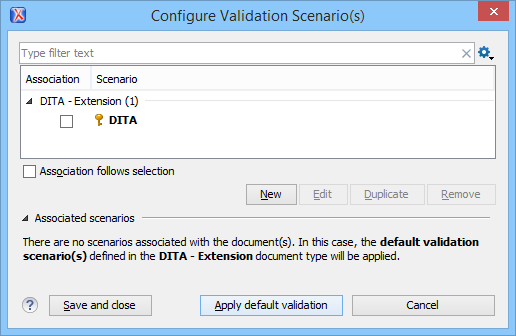
The Configure Validation Scenario(s) dialog box is displayed. It contains the following types of scenarios:
Validation toolbar
drop-down list.
The Configure Validation Scenario(s) dialog box is displayed. It contains the following types of scenarios:- Predefined scenarios are organized in categories depending on the type of file they apply to. You can identify Predefined scenarios by a yellow key icon that marks them as read-only. If the predefined scenario is the default scenario of the framework, its name is written in bold font. If you try to edit one of these scenarios, Oxygen XML Author creates a customizable duplicate.
- User defined scenarios are organized under a single category, but you can use
the drop-down option box to filter them by the type of file they validate.Note: The default validation scenarios are not displayed in the scenarios list. If the current file has no associated scenarios, the preview area displays a message to let you know that you can apply the default validation.
Figure: Configure Validation Scenario
-
Press the
 New button to add a new scenario.
The New scenarios dialog box that lists all validation units of the scenario is opened.
New button to add a new scenario.
The New scenarios dialog box that lists all validation units of the scenario is opened.Figure: Add / Edit a Validation Unit
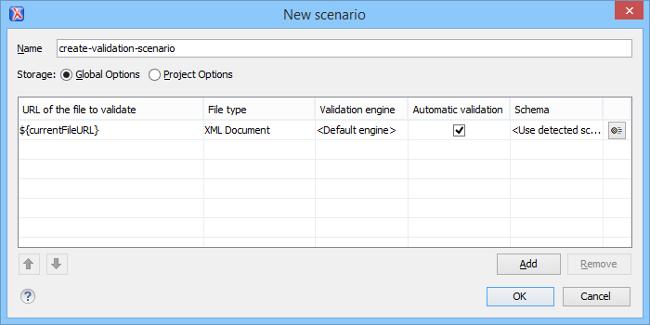
The table includes the following information:
- URL of the file to validate - The URL of the main module that includes the current module. It is also the entry module of the validation process when the current one is validated.
- File type - The type of the document that is validated in the current validation unit. Oxygen XML Author automatically selects the file type depending on the value of the URL of the file to validate field.
- Validation engine - One of the engines available in Oxygen XML Author for validation of the type of document to which the current module belongs. Default engine is the default setting and it means that the default engine executes the validation. This engine is set in the Preferences pages for the current document type (XML document, XML Schema, XSLT stylesheet, XQuery file, etc.) instead of a validation scenario.
- Automatic validation - If this option is checked, the validation operation defined by this row is also applied by the automatic validation feature. If the Automatic validation feature is disabled in Preferences, then this option is ignored, as the Preference setting has a higher priority.
- Schema - This option becomes active when you set the File type to XML Document.
 Settings - Opens the Specify Schema dialog box
that allows you to set a schema for validating XML documents, or a list of extensions
for validating XSL or XQuery documents. You can also set a default phase for
validation with a Schematron schema.
Settings - Opens the Specify Schema dialog box
that allows you to set a schema for validating XML documents, or a list of extensions
for validating XSL or XQuery documents. You can also set a default phase for
validation with a Schematron schema.
-
To edit the URL of the main validation module, double-click on its cell in the
URL of the file to validate column.
Specify the URL of the main module by doing one of the following:
- Use the
 Browse drop-down button to browse for a local, remote, or archived
file.
Browse drop-down button to browse for a local, remote, or archived
file. - Use the
 Insert Editor Variable button to insert an
editor variable or a custom editor variable.
Insert Editor Variable button to insert an
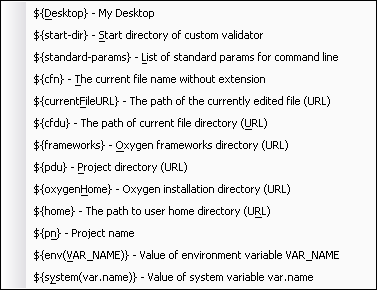
editor variable or a custom editor variable.Figure: Insert an Editor Variable
- Use the